Make an AI Rap Video on Your Phone
Make a lip-synced AI rap video on iPhone or Android in the browser: photos from your camera roll, no app to install, an MP4 back in minutes.
You can make an AI rap video entirely on your phone: open the generator in the browser, pull one or two photos from the camera roll, type a line, and a vertical MP4 with the vocals and the beat already in it comes back in a few minutes. No app, no editor, no laptop. The search results full of "CapCut template plus five apps" workflows are describing the long way; this is the short one, and it is the same tool on iOS and Android.
What you need
Three things, all probably in your pocket:
- A browser. Safari, Chrome, whatever the phone ships with. The generator is a web page; there is nothing to install.
- One or two photos. Clear, front-facing, framed from the chest up, of an adult who agreed to appear. A photo taken on the phone in the last five years is more than enough — good light matters more than the camera.
- One line about the occasion. "Dad turns 60 and still mows the lawn in sandals." The AI writes the bars around it.
An email verification is the only account step, and it unlocks the one free preview.
The steps on a phone
- Open the generator and pick the occasion — birthday, roast, Christmas, a dance. The occasion picks the template, and the template sets the stage, the beat and the lyric style.
- Add the photos. The upload button opens the camera roll (or the camera directly). Duo stages like Hype Duo and Roast Battle take exactly two photos; most others take one or two. If you have no photo at all, the stick figure and lion boss stages perform without one.
- Type the topic. A name and a real detail beat any big concept. Or open "Write my own lyrics" and paste bars you wrote elsewhere — the video raps the opening lines that fit.
- Watch the free preview. Every verified account gets one 6-second 480p preview, watermarked and play-only. On a phone screen this is exactly enough to answer the only question that matters: does the face hold.
- Render the full video. 30 credits for 480p, 60 for 720p on the rap stages — the $3.99 pack is exactly one 480p video, paid once. You can close the tab; the site emails you when it is done.
Getting it off the phone
The finished video downloads as an MP4. On iPhone it goes to Files; on Android to Downloads. It is vertical 9:16, which means it drops into TikTok, Reels or Shorts with no cropping, and 15 seconds on the rap stages loops well in a feed. Silent stages are the exception by design: the dance remakes (8 seconds, 100 credits) and the dunk clip (12 seconds) arrive without music so you can add the trending sound when you post, which is what those trends expect anyway.
One practical note: keep the phone off low-power mode for the render if you can. It is a server-side job — the phone only uploads photos and downloads the result — but a browser tab that gets frozen by the OS mid-upload is the most common way a render gets delayed.
If you would rather not upload the clip at all, the Share button on a finished render gives a watch link that plays the video and the template name, nothing else. Sending the link is faster than sending the file on a patchy connection, and the recipient watches it in the same player, watermark rules included: a paid render shows clean, a free preview keeps its overlay.
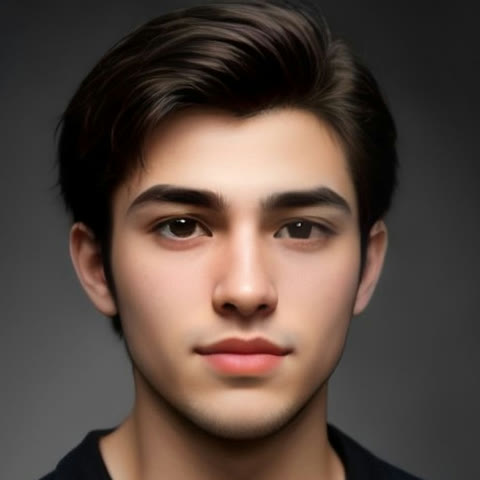 Photo in
What the phone is bad at, honestly
Judging fine detail on a 6-inch screen. The preview will look softer than the final file, and a face that looks fine at thumb size can have drift that shows up on a laptop. Two habits fix most of it: check the preview full-screen rather than in the corner of the page, and if the face matters (it usually does), watch the first second frame by frame — the drift shows early.
Also, typing on a phone is where most topic lines die. If your topic is longer than a sentence or two, draft it somewhere you can edit comfortably, then paste it in. The box takes up to 120 characters, which is one specific detail, not a speech.
When to switch to a laptop
Almost never. The phone flow is complete end to end: shoot or pick the photo, preview, render, download, post. The one case for a bigger screen is picking between photos — comparing four candidates for which face is sharpest and most front-facing is easier on a monitor. The full walk-through, including which photo works best, is in how to make an AI rap video from a photo, and the photo-first page here shows finished clips next to the photos they came from. If you want the cost detail before rendering, pricing is one tap away.
Frequently asked questions
Do I need to download an app on my iPhone or Android phone?
No. The generator runs in the browser, on the phone or on a computer, so there is nothing to install and nothing draining storage. Make the video, download the MP4 and post it straight from the same phone.
How do I get the finished video off my phone?
The download button saves the MP4 — on iPhone it lands in Files (Downloads), on Android in Downloads. From there it posts to TikTok, Instagram Reels, YouTube Shorts or a group chat like any other video. Every full video is vertical 9:16, so nothing needs cropping.
Why does the preview look small or soft on my phone?
The free preview is 480p and 6 seconds with a watermark — it exists to check that the face holds in the scene, not to post. The paid render downloads clean, and 720p is available at 60 credits if you want the sharper file.
Can I take the photos with the camera instead of the camera roll?
Yes. The upload button opens your camera as well as your library, so you can shoot the front-facing photo on the spot. Clear, front-facing photos of adults who agreed to appear work best.